

🌟 Introduction: Why Use an Open-Source Web Hosting Control Panel?
Web hosting control panels make managing websites, databases, and applications easy. But many proprietary options are expensive. Open-source alternatives provide cost-effective, flexible, and scalable solutions. In this post, we’ll compare the best open-source web hosting panels and guide you through installing CapRover and deploying FOSSBilling on your server.
🔍 Comparing Open-Source Web Hosting Control Panels
| Feature | CapRover | CloudPanel | HestiaCP | CyberPanel | aaPanel |
|---|---|---|---|---|---|
| Docker Support | ✅ Yes | ❌ No | ❌ No | ✅ Limited | ✅ Yes |
| Reverse Proxy | ✅ Yes | ✅ Yes | ✅ Yes | ✅ Yes | ✅ Yes |
| Database Support | ✅ MySQL, PostgreSQL | ✅ MySQL | ✅ MySQL | ✅ MySQL | ✅ Multiple |
| Multi-User Support | ❌ No (Single User) | ✅ Yes | ✅ Yes | ✅ Yes | ✅ Yes |
| One-Click App Deployment | ✅ Yes | ✅ Yes | ❌ No | ✅ Yes | ✅ Yes |
| Web Hosting Capabilities | ✅ Yes | ✅ Yes | ✅ Yes | ✅ Yes | ✅ Yes |
| Email Hosting | ❌ No | ✅ Yes | ✅ Yes | ✅ Yes | ✅ Yes |
| Best For | Docker App Deployment | WordPress, eCommerce | Traditional Hosting | WordPress, Email | Multi-Purpose Hosting |
Why Choose CapRover?
CapRover is best suited for developers and self-hosters who want to deploy multiple Docker-based applications with a built-in reverse proxy and SSL support.
🛠️ Step-by-Step Guide: Installing CapRover and Deploying FOSSBilling
Step 1: Prepare Your VPS
Before installing CapRover, ensure your VPS is clean and secure.
🔄 Update and Secure Your VPS
sudo apt update && sudo apt upgrade -y
sudo apt install ufw curl nano -y
🔐 Set Up Firewall Rules (UFW)
CapRover uses ports 80 (HTTP), 443 (HTTPS), and 3000 (Admin Panel):
sudo ufw allow 22/tcp
sudo ufw allow 80,443,3000/tcp
sudo ufw enable
sudo ufw status
🐳 Install Docker
CapRover runs on Docker, so install it:
curl -fsSL https://get.docker.com | sh
sudo systemctl enable docker
sudo systemctl start docker
Check Docker status:
docker --versionStep 2: Install CapRover
Switch to root user:
su root
Configure Firewall
Some providers have strict firewall settings. To disable firewall on Ubuntu:
ufw allow 80,443,3000,996,7946,4789,2377/tcp; ufw allow 7946,4789,2377/udp;
See firewall settings if you need more details.
Step 1: CapRover Installation
Just run the following line, sit back and enjoy!
docker run -p 80:80 -p 443:443 -p 3000:3000 -e ACCEPTED_TERMS=true -v /var/run/docker.sock:/var/run/docker.sock -v /captain:/captain caprover/caprover
NOTE: do not change the port mappings. CapRover only works on the specified ports.
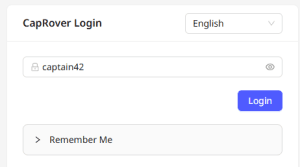
You will see a bunch of outputs on your screen. Once the CapRover is initialized, you can visit http://[IP_OF_YOUR_SERVER]:3000 in your browser and login to CapRover using the default password captain42. You can change your password later. However, do not make any changes in the dashboard. We’ll use the command line tool to setup the server (recommended).
Step 2: Connect Root Domain
Let’s say you own mydomain.com. You can set caprover.mydomain.com as an A-record in your DNS settings to point to the IP address of the server where you installed CapRover. Note that it can take several hours for this change to take into effect. It will show up like this in your DNS configs:
- TYPE: A record
- HOST:
*.something - POINTS TO: (IP Address of your server)
- TTL: (doesn’t really matter)
To confirm, go to https://mxtoolbox.com/DNSLookup.aspx and enter randomthing123.CapRover.mydomain.com and check if IP address resolves to the IP you set in your DNS. Note that randomthing123 is needed because you set a wildcard entry in your DNS by setting *.something as your host, not something.
NOTE: CapRover requires A Record to be pointing to CapRover’s IP Address. If you use proxy services, such as Cloudflare, you may face difficulties. CapRover does not officially support such use cases.
You can read more about hiding the root domain here.
You can read more about Official Installation here.
NOTE: It will not be possible to carry through with the
caprover serversetupif you’ve already forced https on your CapRover instance. In such case go straight to logging in with thecaprover logincommand. To change the password go to the settings menu in the app.http://YOUR_SERVER_IP:3000
- Password:
captain42(can be reset later)
Step 4: (Optional) Set up Swap file
In some cases you may run into problems due to not having enough physical RAM. For example, when building a Docker image, if it starts to take up too much memory, the build will fail. To work around these problems (without purchasing more RAM) you can set up a Swap file (which is used as virtual RAM), by following these instructions on How To Create A Linux Swap File.
Step 5: Deploy the Test App
Go to the CapRover in your browser, from the left menu select Apps and create a new app. Name it my-first-app. Then, download any of the test apps here, unzip the content. and while inside the directory of the test app, run:
/home/Desktop/captain-examples/captain-node$ caprover deploy
Follow the instructions, enter my-first-app when asked for app name. First time build takes about two minutes. After build is completed, visit my-first-app.something.mydomain.com where something.mydomain.com is your root domain. CONGRATS! Your app is live!!
You can connect multiple custom domains (like www.my-app.com) to a single app and enable HTTPS and do much more in the app’s settings page.
Note that when you run caprover deploy, the current git commit will be sent over to your server.
IMPORTANT: Uncommitted files and files in
gitignoreWILL NOT be sent to the server.
You can visit CapRover in the browser and set custom parameters for your app such as environment variables, and do much more! For more details regarding deployment, please see CLI docs.
Once installed, access CapRover at:
Step 3: Configure CapRover
🌍 Set Up a Domain for CapRover
- Point a domain or subdomain to your server IP using an
A recordin your DNS settings (e.g.,panel.yourdomain.com→your_vps_ip). - Access CapRover Dashboard: Open
http://panel.yourdomain.com:3000in your browser. - Enable HTTPS: In CapRover settings, enable automatic SSL via Let’s Encrypt.
- Create a New App for FOSSBilling
Step 4: Deploy FOSSBilling on CapRover
🚀 Create a New App in CapRover
- Go to the CapRover dashboard.
- Click Apps > Deploy New App.
- Set the app name (e.g.,
fossbilling). - Choose One-Click App or Deploy from Docker Image.
🛠️ Deploy FOSSBilling Docker Image
docker run -d \
    --name fossbilling \
    -p 8080:80 \
    fossbilling/fossbilling:latest
🗄️ Set Up a Database
- Go to Databases in CapRover.
- Create a MariaDB database for FOSSBilling.
- Note the DB Host, Username, and Password.
🔒 Configure Domain and SSL
- Assign a custom domain (
billing.yourdomain.com). - Enable HTTPS using Let’s Encrypt.
🎯 Complete FOSSBilling Setup
- Access
http://billing.yourdomain.com/install.php. - Enter the database credentials.
- Complete the installation process.
🏆 Finalizing & Best Practices
🔐 Security Enhancements
- Disable public access to CapRover Admin Panel (
3000port) - Enable Fail2Ban and SSH key authentication
- Regularly update Docker and CapRover
📦 Backup & Restore CapRover
- Use
docker backupto create snapshots. - Regularly backup MariaDB databases.
⚡ Scaling & Performance Optimization
- Use CapRover scaling to run multiple instances.
- Optimize MariaDB settings for better performance.
🎯 Conclusion & Next Steps
CapRover is an excellent choice for self-hosting multiple applications with Docker, SSL, and reverse proxy support. It simplifies deploying apps like FOSSBilling, ERPNext, Nextcloud, and more.
💡 Next Steps: Install ERPNext and optimize your server performance! Stay tuned for our next guide.
🌐 About EngineerHow.com
🚀 EngineerHow.com provides step-by-step tutorials on self-hosting, VPS, networking, and IT solutions. If you found this guide helpful, drop a comment below and share it with your network! Join us for more exciting tutorials! 😊🔥


