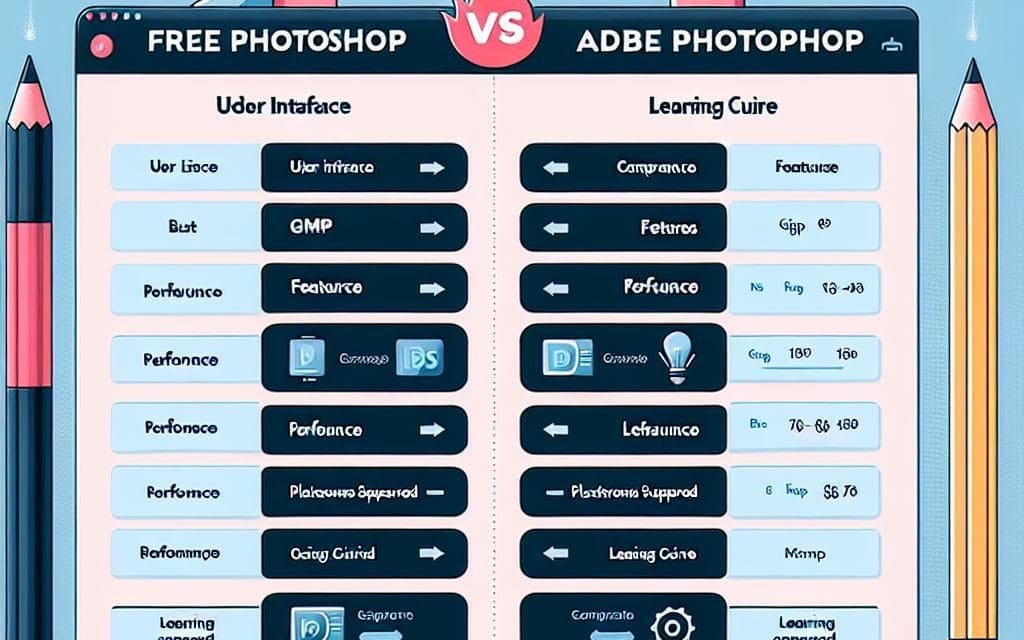
When it comes to free alternatives to Adobe Photoshop, GIMP (GNU Image Manipulation Program) and Photopea stand out as top choices. Both offer powerful image editing tools without the need for a costly subscription. But which one is better suited for your needs? Let’s compare their features, advantages, and usability.
Feature Comparison: GIMP vs. Photopea
| Feature | GIMP | Photopea |
|---|---|---|
| Platform | Windows, Mac, Linux | Web-based (any OS) |
| Installation | Requires download & installation | Runs in a browser |
| File Support | PSD, XCF, PNG, JPEG, TIFF, GIF, WebP | PSD, PNG, JPEG, TIFF, GIF, WebP |
| Layer Support | Yes | Yes |
| Advanced Tools | Yes (Custom Brushes, Scripts, Plugins) | Yes (Non-destructive editing, Smart Objects) |
| Offline Access | Yes | No (Needs internet) |
| Customization | High (Plugins, Scripts, Custom UI) | Limited customization |
| Ease of Use | Moderate learning curve | Easier to use |
| Performance | Depends on system specs | Can lag on large files |
| Best For | Advanced image editing, graphic design | Quick edits, browser-based workflows |
Deep Dive into GIMP
1. What is GIMP?
GIMP is an open-source image editor available on multiple platforms. It offers a rich set of tools that make it an excellent choice for professional and hobbyist designers.
2. Key Features of GIMP
Advanced Selection Tools: Lasso, Magic Wand, Paths, Quick Mask
Layer & Mask Support: Works similarly to Photoshop’s layer-based workflow
Brush & Clone Tools: Customizable brushes, healing tool, airbrush, and clone stamp
Filters & Effects: Wide range of pre-installed and downloadable filters
Custom Plugins & Extensions: Huge community-driven plugin support
Script Support: Python and Scheme scripting for automation
Vector Support: Basic vector tools, but not as powerful as Illustrator
Supports High Bit Depth Images: Works with 16-bit and 32-bit images
3. Advantages of GIMP
✅ Completely Free & Open Source – No hidden costs or limitations.
✅ Works Offline – Doesn’t require an internet connection.
✅ Powerful Plugins – Supports a vast range of extensions and add-ons.
✅ Cross-Platform – Runs on Windows, macOS, and Linux.
✅ Active Community – Large community with forums, tutorials, and support.
4. Disadvantages of GIMP
❌ Steep Learning Curve – UI can be intimidating for beginners.
❌ No CMYK Support by Default – Requires plugins for professional print workflows.
❌ Limited Non-Destructive Editing – Lacks adjustment layers like Photoshop.
❌ Performance Varies – Heavily dependent on system hardware.
Why Choose Photopea?
Photopea is an online Photoshop alternative that runs entirely in the browser. It is an excellent choice for quick edits and PSD file manipulation without installing software.
1. Key Features of Photopea
No Installation Required: Runs in any modern browser.
Supports PSD Files: Open, edit, and save PSDs with layer compatibility.
Non-Destructive Editing: Smart Objects and Adjustment Layers.
Basic Vector Support: Works with SVG files.
Works on Any Device: Compatible with desktops, tablets, and Chromebooks.
Auto-Save Feature: Saves progress in case of accidental closure.
2. Advantages of Photopea
✅ Web-Based & No Download Needed – Works on any OS.
✅ PSD Compatibility – Great for opening and editing Photoshop files.
✅ Intuitive UI – Similar to Photoshop, making it easy to transition.
✅ Works on Low-End Systems – Doesn’t need powerful hardware.
✅ Fast & Lightweight – Ideal for quick edits.
3. Disadvantages of Photopea
❌ Requires Internet Connection – Not ideal for offline work.
❌ Limited Customization – No third-party plugins or scripts.
❌ Ads & Premium Plan – Free version has ads; premium removes them.
❌ Performance Issues with Large Files – Can slow down on complex PSDs.
Which One Should You Use?

✅ Choose GIMP if: You need a powerful, offline, and fully customizable alternative to Photoshop with advanced features. Best for designers who require detailed editing and can handle a learning curve.
✅ Choose Photopea if: You want a lightweight, browser-based, and easy-to-use Photoshop alternative for quick edits, PSD file handling, and non-destructive editing. Ideal for users who don’t want to install software.
Both GIMP and Photopea are excellent free Photoshop alternatives, catering to different user needs. If you need deep customization and professional features, go with GIMP. If you need a quick, accessible, and Photoshop-like interface, Photopea is the way to go!
Conclusion
GIMP and Photopea both provide fantastic free alternatives to Photoshop. GIMP is a powerful, feature-rich software best for detailed editing, while Photopea is a convenient, web-based tool perfect for quick edits and PSD compatibility.
About EngineerHow.com
EngineerHow.com provides in-depth tutorials on IT, engineering, self-hosting, and open-source solutions. Whether you’re setting up a VPS, learning networking, or exploring image editing software, we’ve got step-by-step guides to help you! 🚀
Which one do you prefer? Let us know in the comments! 👇