Introduction
InvoiceNinja is a powerful open-source invoicing, billing, and payment management solution for small businesses, freelancers, and entrepreneurs. It allows you to create invoices, track payments, and generate detailed reports, all while giving you full control over your data. In this guide, we’ll walk you through the process of setting up InvoiceNinja on your server for seamless invoicing.
What is InvoiceNinja?
InvoiceNinja is a feature-rich invoicing software that supports recurring invoices, multi-currency, client portals, time tracking, and more. It is highly customizable, and you can choose between a hosted solution (InvoiceNinja’s cloud) or self-hosting it on your own server for full control over your data.
System Requirements
Before setting up InvoiceNinja, make sure your system meets the following requirements:
- A VPS running Ubuntu 22.04 or later
- Docker and Docker Compose installed
- MySQL or MariaDB for the database
- A domain (for example: invoicing.yourdomain.com)
Step-by-Step Guide to Set Up InvoiceNinja
Install Docker and Docker Compose
If you haven’t already installed Docker and Docker Compose on your VPS, follow these steps:
Set Up the InvoiceNinja Docker Containers
You can use Docker to set up InvoiceNinja and its dependencies. Here’s a simple
docker-compose.ymlconfiguration for your InvoiceNinja setup:Start the Containers
Run the following command to start InvoiceNinja:
Access InvoiceNinja
After the containers start, you can access InvoiceNinja by navigating to
http://your_domain_or_ip:8080. Complete the setup by following the on-screen instructions to configure your database and create your admin account.Configuring Invoice Settings
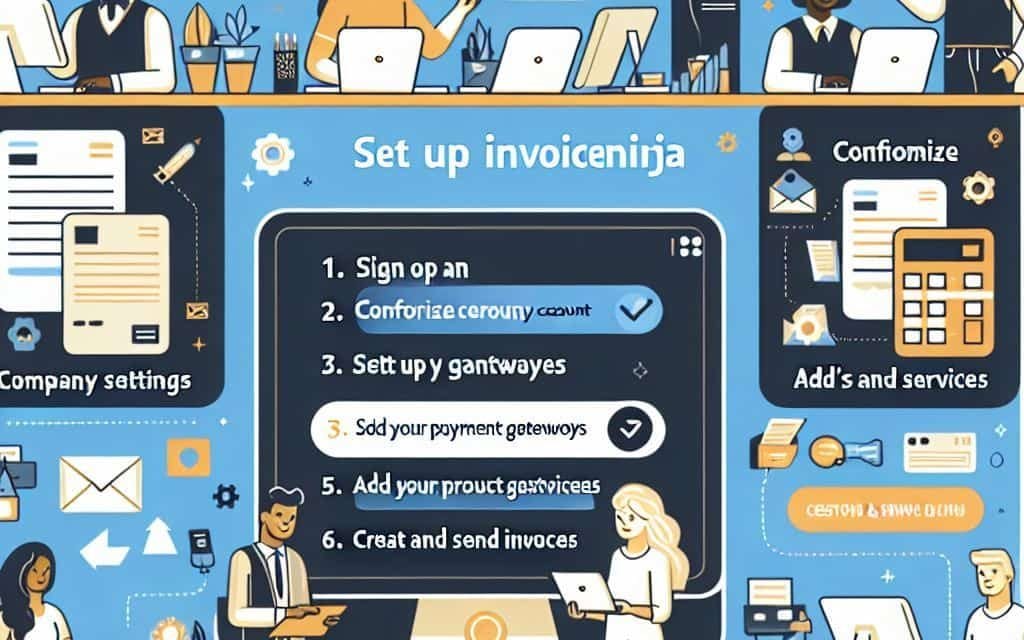
Once logged in, go to Settings > Invoice Settings and customize:
- Company information (name, logo, address)
- Default currency and tax rates
- Payment methods (PayPal, Stripe, etc.)
Key Features of InvoiceNinja
- Custom Invoices: Create and customize invoices with your branding and client-specific information.
- Recurring Billing: Set up automatic recurring invoices to save time.
- Client Portal: Allow clients to view invoices, pay online, and download documents.
- Payment Integration: Accept payments via Stripe, PayPal, and other gateways.
- Expense Tracking: Record and categorize business expenses for easy financial management.
Free Alternatives to InvoiceNinja
If you’re looking for other invoicing solutions, here are some top-rated free alternatives:
- Zoho Invoice: A simple, easy-to-use invoicing tool with time tracking and estimates.
- Wave: A free invoicing and accounting solution with built-in payment processing.
- Billdu: A free invoicing software with custom templates and mobile app support.
Comparison Chart
| Feature | InvoiceNinja | Zoho Invoice | Wave | Billdu |
|---|---|---|---|---|
| Custom Invoices | ✅ | ✅ | ✅ | ✅ |
| Recurring Invoices | ✅ | ✅ | ❌ | ✅ |
| Payment Integration | ✅ | ✅ | ✅ | ✅ |
| Client Portal | ✅ | ✅ | ❌ | ✅ |
| Multi-Currency | ✅ | ✅ | ✅ | ✅ |
| Open Source | ✅ | ❌ | ❌ | ❌ |
Video Guide
Check out this video guide on how to install and configure InvoiceNinja for your business:
Conclusion
InvoiceNinja is a powerful tool for freelancers and small businesses that need an easy-to-use invoicing solution. By following this guide, you should now have a fully functional InvoiceNinja setup on your server, helping you streamline your billing process and stay organized.
About EngineerHow.com
EngineerHow.com provides step-by-step guides, tutorials, and resources on IT, engineering, and business solutions. We help individuals and businesses optimize their workflows and understand complex technologies with easy-to-follow guides and professional insights.
Comments
Have questions or need help with your InvoiceNinja setup? Drop a comment below, and we’ll be happy to assist!