Overview
Before committing to a full subscription, Autodesk allows professionals and students to explore the full capabilities of AutoCAD through a free trial. This is an excellent opportunity for engineers and project managers to test the latest AI-driven features, such as Smart Blocks and Activity Insights, within their specific workflows.
At EngineerHow, we understand that setting up complex engineering software can be daunting. This guide simplifies the process, ensuring you get your AutoCAD trial up and running smoothly on your workstation.
Post Contents
Prerequisites for Installation
Before you begin, ensure your system is ready to handle AutoCAD 2026:
Operating System: 64-bit Microsoft® Windows® 11 or 10.
Processor: 2.5 GHz (3+ GHz recommended) with SSE4.2 support.
Memory (RAM): Minimum 8 GB (32 GB recommended for large projects).
Disk Space: 10.0 GB of free space (SSD preferred).
Internet: A stable connection for the initial download and license validation.
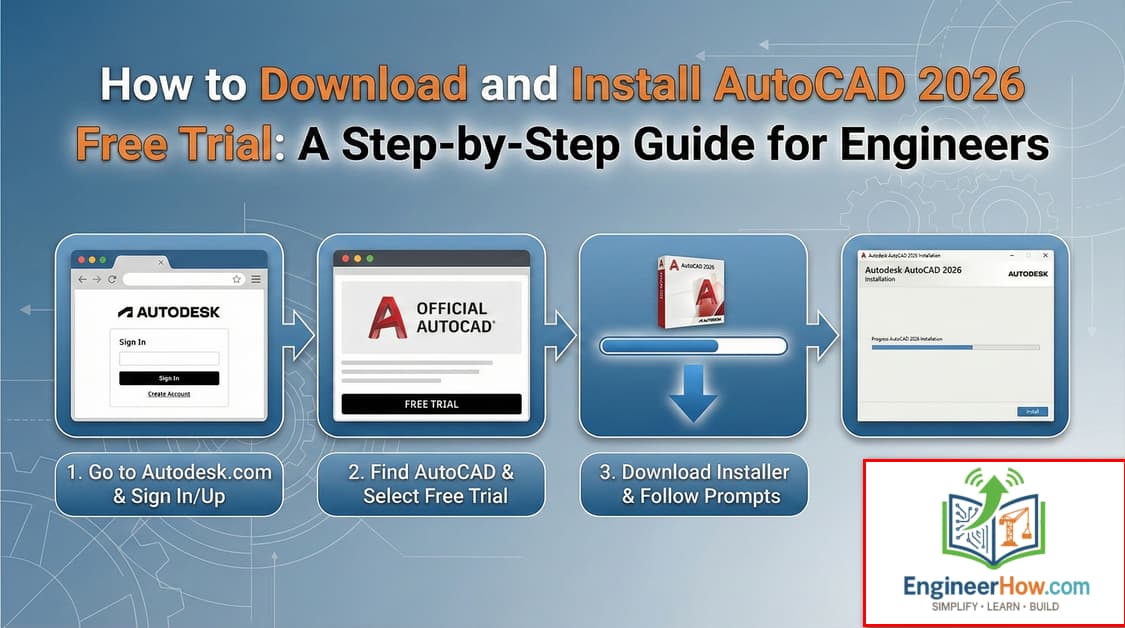
Step 1: Create an Autodesk Account
To access any trial, you must have an Autodesk account.
Go to the Autodesk Official Website.
Click on Sign In and select Create Account.
Use your professional or educational email address to ensure you receive the correct trial permissions.
Step 2: Navigate to the AutoCAD Trial Page
Visit the AutoCAD Free Trial page.
Click the Download Free Trial button.
Choose your user type: Business, Education, or File Viewer.
Note: If you are an HSE Instructor or a student, the Education version offers an extended period (subject to verification).
Step 3: Choose Your Version and Download
Select AutoCAD (this includes specialized toolsets like Architecture, Mechanical, and Electrical).
The browser will download a small “Web Installer” file.
Pro Tip for EngineerHow readers: If you are working in a remote area with unstable internet (like many project sites in Oman), we highly recommend using the Offline Installer links provided in our AutoCAD 2023-2026 Direct Download Guide.
Step 4: Installation Process
Run the downloaded installer.
The Autodesk Access service will initialize and begin downloading the core components.
Agree to the Terms of Use and select your installation path (default is
C:\Program Files\Autodesk).Once the progress bar reaches 100%, click Start.
Step 5: Activating the Trial
Launch AutoCAD from your desktop.
When the “Let’s Get Started” screen appears, select Sign in with your Autodesk ID.
Log in with the credentials you created in Step 1.
Your 30-day trial period will begin immediately.
Frequently Asked Questions (FAQ)
Can I use the trial for commercial work? Officially, the trial is for evaluation purposes. For project-specific deliverables, a valid subscription is required.
What happens after 30 days? The software will enter “Viewer Mode.” You will be able to open and print files, but you cannot save changes or create new drawings until a license is purchased.
Can I install it on multiple machines? The trial is usually linked to one unique Autodesk ID and hardware ID.
Conclusion
Installing the AutoCAD trial is the first step toward mastering professional technical drawing. Whether you are managing HSE on a PDO site or designing infrastructure in Pakistan, having the right tools is essential for precision and safety.
Copyright @EngineerHow.com
We recommend bookmarking this guide from EngineerHow.com for future reference. Our goal is to make complex technical topics simple and accessible for everyone.
🔗 Useful Links
📢 About EngineerHow.com EngineerHow.com is dedicated to providing expert IT and engineering tutorials, helping professionals and enthusiasts set up servers, networks, and self-hosted solutions. Our guides focus on step-by-step instructions to make complex topics easy to understand.
🚀 Explore More IT Guides: EngineerHow.com
💬 Join the Discussion! Have questions or insights? Drop a comment below and let’s discuss!
Copyright © 2025 EngineerHow.com. All Rights Reserved.