
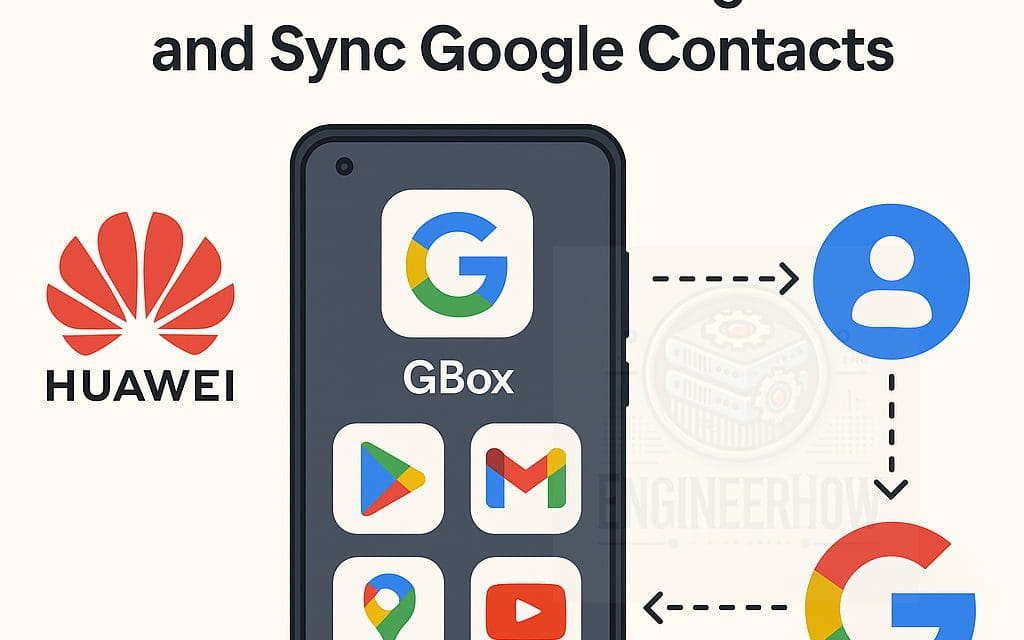
✅ Applies to EMUI 11/12 devices without Google Play Services (e.g., Nova 7, MatePad, P40 series)
🧰 Requirements
| Tool | Purpose |
|---|---|
| GBox | Run Google apps inside a secure sandbox |
| Aurora Store | Install apps from Play Store without GMS |
| Google Account | Needed for login and app sync |
🪜 Step-by-Step Guide
🔹 1. Install GBox
- Open Huawei AppGallery
- Search for “GBox” and install it
- Launch GBox → Grant all permissions
- Open Google Play Store inside GBox
- Log in using your Google account
🔹 2. Install Google Apps Inside GBox
Use the Play Store in GBox to install:
- Gmail
- YouTube
- Google Maps
- Google Contacts
- Google Drive
- Google Calendar
✅ Apps installed this way will sync your Google data inside the GBox environment.
⚠️ GBox Limitations
| Limitation | Explanation |
|---|---|
| Apps run in isolation | Can’t share data with system apps directly |
| No full device-wide sync | Contacts won’t appear in native Contacts app |
| Push notifications may be delayed | Background services restricted in sandbox |
📝 Tips
- Use GBox for essential Google apps with sync (Gmail, Maps)
- Use DAVx⁵ to sync Google Contacts to the Huawei system
- Keep GBox updated via AppGallery for stability
📞 How to Sync Google Contacts on Huawei Devices Without Google Services (GMS)
✅ Applies to: All Huawei phones and tablets (e.g., Nova 7, P40 series, MatePad) running EMUI 11 or EMUI 12 without Google services.
🔍 Overview
Huawei devices released after 2019 do not support Google Mobile Services (GMS) due to U.S. sanctions. This makes syncing Google Contacts difficult through traditional means. However, using DAVx⁵, an open-source CardDAV client, you can securely and legally sync Google Contacts to your Huawei device.
📌 What You’ll Learn
- How to install DAVx⁵ using Aurora Store
- How to connect your Google account via CardDAV
- How to sync contacts directly into the Huawei Contacts app
- Safe and legal usage tips
🧰 Requirements
| Tool | Purpose |
|---|---|
| DAVx⁵ | Open-source app to sync contacts/calendar |
| Aurora Store | Install Play Store apps without GMS |
| Google Account | Sync source (your existing account) |
🪜 Step-by-Step Guide
🔹 1. Install DAVx⁵
💡 Note on DAVx⁵ Pricing
DAVx⁵ is a paid app on the Google Play Store and Huawei AppGallery, but it is completely free and open-source on F-Droid.
- 🔗 Download Free from F-Droid: https://f-droid.org/packages/at.bitfire.davdroid/
Using F-Droid ensures you get the latest stable release without paying, while still supporting open-source development.
Alternative:
- Install Aurora Store from auroraoss.com/download.
- Open Aurora Store → Choose Anonymous Login.
- Search for DAVx⁵ and install it.
🔹 2. Set Up Google Account in DAVx⁵
- Open DAVx⁵.
- Tap the “+” icon to add an account.
- Select Login with URL and username.
🔑 Input the following:
- Base URL:
https://www.googleapis.com/.well-known/carddav - Username: Your full Gmail address (e.g.,
[email protected]) - Password: Your Google password
- Tap Login to proceed.
⚠️ If you use 2FA, generate an App Password from your Google Account. (Follow post instructions at the end on Using 2FA Accounts Securely)
🔹 3. Enable Contact Sync
- Once connected, DAVx⁵ will list available sync groups.
- Enable the Contacts group.
- Confirm sync frequency (default is 15 minutes).
- Accept all permissions requested.
🔹 4. Verify in Huawei Contacts App
- Go to Settings > Users & Accounts > DAVx⁵.
- Ensure Contacts Sync is enabled.
- Open the Huawei Contacts app → Your Google contacts should now appear and sync automatically.
🧪 Example: Huawei Nova 7 (EMUI 12)
Tested on Huawei Nova 7 (JEF-NX9, EMUI 12):
- DAVx⁵ successfully synced contacts from Google
- Contacts appeared in the native Contacts app
- WhatsApp, Dialer, and Messaging apps could access synced contacts
🔄 Tips for Two-Way Sync Between Phones
- Use the same Google account on both devices.
- Save new contacts to Google (not local) from each device.
- Sync will auto-update through DAVx⁵ on Huawei and native sync on Android.
🔐 Is It Safe and Legal?
| Topic | Safe? | Notes |
|---|---|---|
| DAVx⁵ Usage | ✅ Yes | Open-source, FOSS app |
| Aurora Store | ✅ Mostly | Mirrors Play Store legally; use anonymous login |
| Google Credentials | ⚠️ Use App Passwords | Secure login, avoid direct password usage |
| Tutorial Publication | ✅ Yes | Safe under educational fair use |
| Google/Huawei Mentions | ✅ Yes | No brand misuse or reverse engineering involved |
🔐 Using 2FA Accounts Securely with DAVx⁵
📌 What is 2FA (Two-Factor Authentication)?
2FA (Two-Factor Authentication) adds an extra layer of security to your Google account. You log in using:
- Your password, and
- A verification code sent to your phone or authenticator app
This prevents unauthorized access even if your password is stolen.
🔑 Why Use App Passwords with DAVx⁵?
DAVx⁵ doesn’t support 2FA prompts directly. Instead of disabling 2FA, you should use a Google App Password — a secure, 16-character code generated for specific apps.
| Reason | Benefit |
|---|---|
| 🔐 Enhanced Security | You avoid using your main password in third-party apps |
| ❌ Limits Risk | App Passwords are app-specific and can’t be used elsewhere |
| 🔁 Easy to Revoke | You can remove any App Password from your Google account anytime |
✅ How to Generate an App Password for DAVx⁵
- Go to: https://myaccount.google.com/apppasswords
- Log in and complete 2FA verification
- Select “Other (Custom name)” and enter:
DAVx5 - Click Generate
- Copy the 16-character App Password shown (e.g.,
abcd efgh ijkl mnop) - Use this in DAVx⁵ instead of your regular password
📢 Important: Never share your App Password or main Google credentials. Store them safely.
📄 Legal Disclaimer
This tutorial is for educational purposes only. The steps provided do not involve rooting, unlocking bootloaders, or violating Google/Huawei policies. Users should ensure compliance with their local laws and platform terms of service.
✅ Summary
Using DAVx⁵ allows you to safely sync your Google Contacts on Huawei devices without needing Google Play Services or custom ROMs. It’s perfect for users who rely on Google but prefer Huawei hardware.
💬 Recommendation
If you found this post helpful, please share it, leave a comment, and subscribe to our YouTube channel for more practical tech guides:
🎥 EngineerHow YouTube
For more self-hosted, privacy-respecting tutorials, visit us at
🌐 EngineerHow.com
© Copyright Notice
© 2025 EngineerHow.com – All rights reserved.
This tutorial is provided for educational purposes only. All trademarks are property of their respective owners. No affiliation with Google, Huawei, or any mentioned software.


