
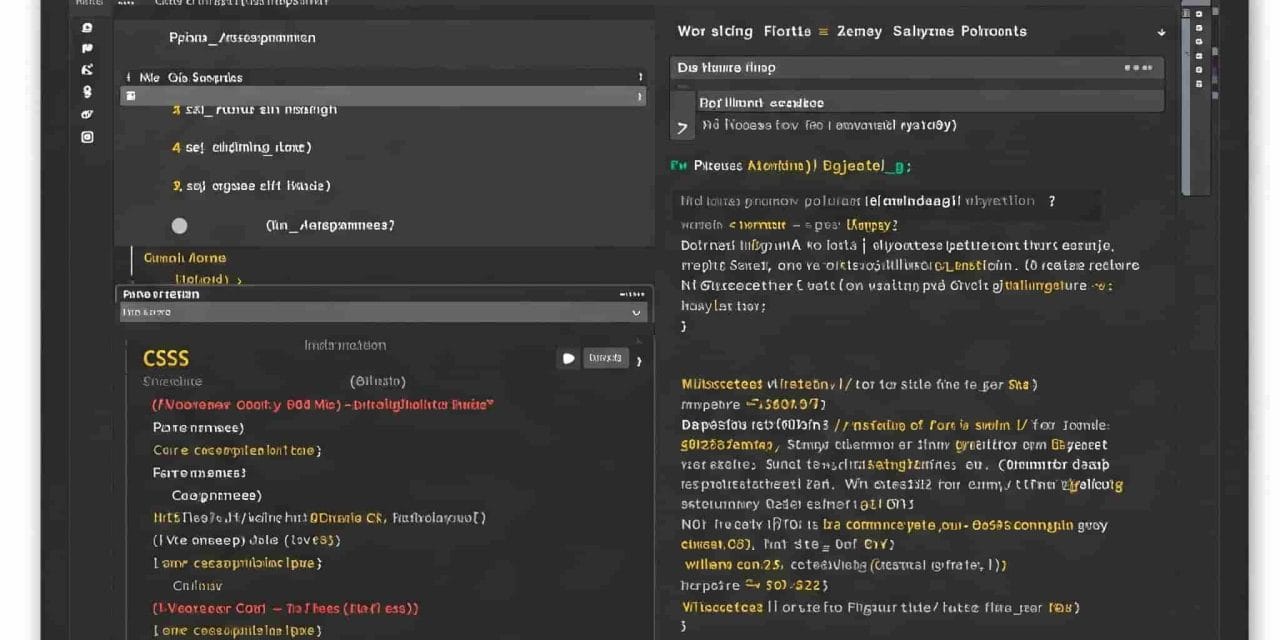
When customizing a WordPress site, you might notice that code blocks appear differently depending on the theme you’re using. For example, some themes may display code with a distinct background and text color, making it easier to read, while others may not. If you’re looking to improve the visibility of code blocks on your site, this post will guide you through how to add custom CSS to style them for better readability.
In this example, we’ll compare how the Astra theme displays code blocks versus another theme, and I’ll show you how to achieve a similar effect with your own site.
Steps to Style Code Blocks for Better Visibility
1. Access the Customizer
- Go to WordPress Dashboard → Appearance → Customize.
- Click on Additional CSS.
2. Add Custom CSS
Paste the following CSS code to style code blocks:
3. Save and Refresh
- Click Publish to apply the changes.
- Refresh your site to see the updated code block styles.
How the Code Works
Background Color: The code blocks are given a light gray background (
#f5f7fa), making the code easier to distinguish from the surrounding content. Inline code snippets are given a slightly lighter background (#eef1f7).Text Color: The text color is darkened (
#333) for better readability, which is important when dealing with code.Padding and Border Radius: Padding around the code makes it easier to read, while rounded corners (
border-radius: 5px) give it a more modern look.Horizontal Scrolling: Long code lines that exceed the width of the block will trigger horizontal scrolling (
overflow-x: auto).
Why You Should Style Code Blocks
By customizing the appearance of code blocks, you can make your content more accessible and visually appealing. Themes like Astra (which we referenced for this example) already come with some built-in code block styles, but other themes may require additional tweaks to get similar results.
Tips for Future Customizations
- You can add more custom styles as needed in the Additional CSS section of the WordPress Customizer.
- Always test new styles on different devices to ensure the changes are responsive.
Conclusion
Customizing your WordPress site’s appearance doesn’t have to be complicated. With a few lines of CSS, you can improve how code is displayed on your site, ensuring a better experience for your visitors. Whether you’re using Astra, Extra, or any other theme, this simple CSS solution can make your code blocks stand out for easy readability.


