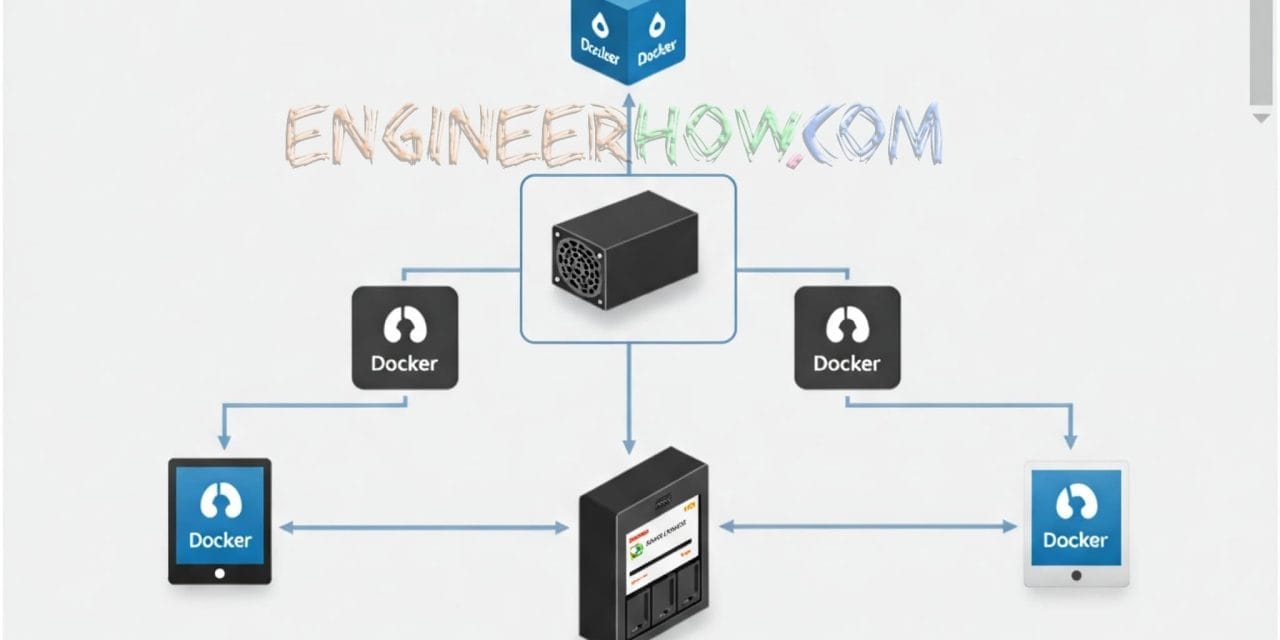
If you’re looking for a powerful yet flexible NAS (Network-Attached Storage) solution that supports file sharing, media streaming, and self-hosted applications, then OpenMediaVault (OMV) with Docker is the perfect choice. In this guide, we’ll take you through the installation, configuration, and app setup for both beginners and advanced users.
What is OpenMediaVault (OMV)?
OpenMediaVault (OMV) is a free and open-source NAS operating system based on Debian Linux. It provides an intuitive web interface to manage your storage drives, file shares, users, and network services like SMB, NFS, FTP, and iSCSI.
Key Features of OMV:
Web-based GUI: Manage everything through a simple web panel.
SMB/NFS/FTP support: Share files across Windows, Mac, and Linux devices.
RAID Support: Create and manage RAID arrays for data redundancy.
User and Permission Management: Control access with user and group settings.
Plugin Support: Extend functionality with plugins like Docker, Plex, Nextcloud, Transmission, and more.
Why Use Docker with OMV?
Docker allows you to run multiple self-hosted applications in isolated containers without interfering with the OMV system. Using Docker in OMV means:
Easy app deployment: Install and manage apps like Plex, JDownloader, qBittorrent, Nextcloud, and Jellyfin easily.
Lightweight and fast: Containers use minimal system resources compared to full virtual machines.
Customizable: Run any app from Docker Hub or create your own.
Installation Guide: Setting Up OMV with Docker
Step 1: Install OpenMediaVault
Download OMV from the official website: OMV Downloads
Create a bootable USB using Rufus or Balena Etcher.
Boot your server from the USB and follow the installation steps.
Once installed, access the OMV web interface:
Open your browser and go to
http://<your-server-IP>.Default login:
Username:
adminPassword:
openmediavault
Change the default password in System > General Settings.
Step 2: Configure Storage & File Sharing
Set Up Disks
Go to Storage > Disks and verify connected drives.
Under File Systems, format and mount your drives.
Create Shared Folders
Navigate to Access Rights Management > Shared Folders.
Add folders for Media, Downloads, Backups, etc.
Enable SMB File Sharing
Go to Services > SMB/CIFS and enable it.
Add your shared folders to the SMB service.
Access them on Windows using
\\<OMV-IP>\sharedfolder.
Step 3: Install Docker & Portainer on OMV
Enable OMV-Extras Plugin:
Go to System > Plugins.
Find and install
openmediavault-omvextrasorg.Once installed, go to OMV-Extras in the left menu.
Install Docker:
In OMV-Extras, find the Docker option and click Install.
Install Portainer (Docker Management GUI):
In OMV-Extras, enable Portainer and click Install.
Access Portainer at
http://<your-server-IP>:9000.
Installing Popular Applications with Docker
1. Plex Media Server (Stream Your Media Collection)
Container Image:
linuxserver/plexSetup:
Volumes:
/config→/srv/dev-disk-by-label-data/Plex/config/media→/srv/dev-disk-by-label-data/Plex/media
Ports:
32400:32400(Web UI)
Access:
http://<OMV-IP>:32400
2. qBittorrent (Torrent Downloader)
Container Image:
linuxserver/qbittorrentSetup:
Volumes:
/config→/srv/dev-disk-by-label-data/qBittorrent/config/downloads→/mnt/Mirror-Raid-Pool/Downloads
Ports:
8080:8080(Web UI)
Access:
http://<OMV-IP>:8080
3. JDownloader (Automated File Downloads)
Container Image:
jlesage/jdownloader-2Setup:
Volumes:
/config→/srv/dev-disk-by-label-data/JDownloader/config/output→/srv/dev-disk-by-label-data/JDownloader/downloads
Ports:
5800:5800(Web UI)
Access:
http://<OMV-IP>:5800
Which NAS Solution is Best for You?
| Feature | OMV with Docker | TrueNAS SCALE | Unraid |
|---|---|---|---|
| Cost | ✅ Free | ✅ Free | ❌ Paid |
| Ease of Use | ✅ Easy | 🔶 Moderate | ✅ Easy |
| App Support | ✅ Excellent (Docker) | ✅ Great (Kubernetes) | ✅ Great (Docker) |
| Customization | ✅ High | 🔶 Moderate | ✅ High |
| File Sharing | ✅ SMB, NFS, FTP | ✅ SMB, NFS | ✅ SMB, NFS |
Best for: Users who want full control, customization, and free app access should go with OMV + Docker.
Final Thoughts
OpenMediaVault with Docker is the best free and customizable NAS solution that supports self-hosted apps, media streaming, and file sharing with ease. Whether you’re a beginner or an advanced user, OMV provides a stable and scalable platform for all your NAS needs.
📢 Find More WordPress & Tech Tutorials on EngineerHow.com
At EngineerHow.com, we provide in-depth tutorials on:
WordPress setup, customization, and optimization.
Self-hosted software and VPS management.
Networking, NAS, and cloud storage solutions.
IT and engineering topics.
🚀 Bookmark EngineerHow.com for more valuable guides and tutorials!