© 2025 EngineerHow.com | All rights reserved
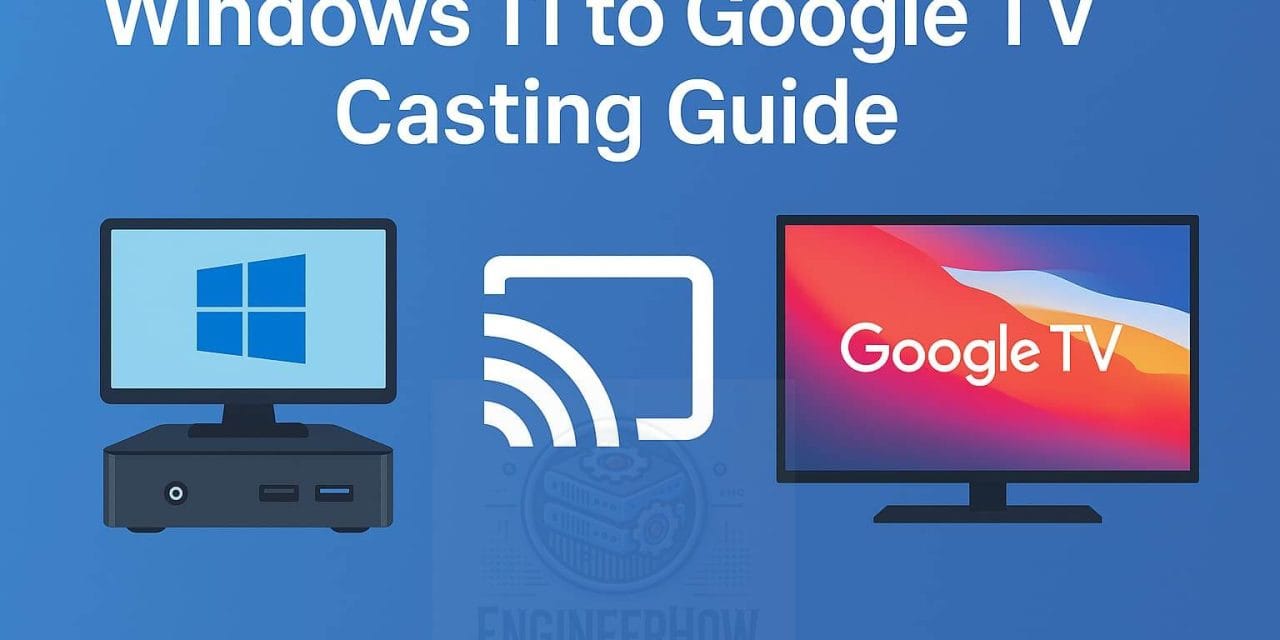
Streaming videos from your PC, phone, or home server to your Google TV doesn’t have to be complicated. Whether you’re using Windows 11, an Android device, or a NAS/server, this step-by-step guide shows you the easiest ways to cast or stream media directly to your TV.
🖥️ Method 1: Cast from Windows 11 Using Microsoft Edge
✅ Steps:
Ensure PC and Google TV are on the same Wi-Fi.
Open Edge, click
... > More tools > Cast Media to Device.If “Cast” is not visible:
Go to
edge://flagsEnable Media Router
Restart Edge
Play the video — it will stream to your Google TV.
🎞️ Method 2: Cast from VLC Media Player (Windows)
✅ Steps:
Open VLC.
Go to Tools > Preferences > Input/Codecs.
Enable Network Discovery and Bonjour Services.
Restart VLC.
Open video > Go to Playback > Renderer > Select your Google TV.

🛠 Common Fixes for Casting Issues
| Problem | Fix |
|---|---|
| Device not listed | Check Wi-Fi & network visibility |
| VLC “Renderer” empty | Enable Bonjour & Network Discovery |
| No cast option in Edge | Enable Media Router flag |
| Lagging playback | Use 5GHz Wi-Fi or Ethernet |
📱 Cast from Android or iPhone to Google TV
🔸 Method 1: Google Photos or Files App
- Open a video → Tap Cast icon → Choose your TV.
🔸 Method 2: VLC for Mobile
- Open video in VLC app → Tap Cast.
🔸 Method 3: Screen Mirroring
Android: Swipe down → Cast / Smart View
iPhone: Install AirScreen app on Google TV → Use AirPlay
🗃️ Cast/Stream from NAS or Home Server
🔸 Option 1: VLC on Google TV
- Install VLC → Open Local Network → Browse shared folders → Play.
🔸 Option 2: Jellyfin or Plex Media Server
Install on NAS/server (e.g., OMV, TrueNAS, Proxmox).
Add your media folders.
Install Jellyfin/Plex app on Google TV → Stream videos easily.
🔸 Option 3: Kodi App
- Install Kodi on Google TV → Add NFS/SMB shared folder → Browse & play.
🔄 Summary Table
| Device | Method | App Required | Notes |
|---|---|---|---|
| Windows 11 PC | Edge / VLC | Built-in / VLC | Best for one-time casting |
| Android / iPhone | VLC / Cast | VLC / Built-in | Easiest for mobile users |
| NAS / Server | VLC / Plex / Jellyfin / Kodi | Various | Great for large libraries |
| Universal | Jellyfin / Plex | Yes | Cross-platform streaming |
✅ Conclusion
Whether you’re watching from a PC, phone, or NAS, Google TV makes it simple to enjoy your videos on the big screen. With tools like Edge, VLC, Plex, or Jellyfin, you can turn your home into a full-fledged media hub.
Author Note:
This guide is published by EngineerHow.com for educational use. All rights reserved.
Want more guides like this? 📲 Visit EngineerHow.com
🎥 Subscribe to our YouTube Channel